qttabbar
qttabbar
qttabbar
QTTabBar: A Complete Guide to Enhancing Windows File Explorer Productivity
Introduction
Managing files efficiently is essential for productivity, especially when working with multiple folders and directories in Windows. While Windows File Explorer has improved over the years, many users still find its navigation limited compared to modern web browsers. This is where QTTabBar comes in.
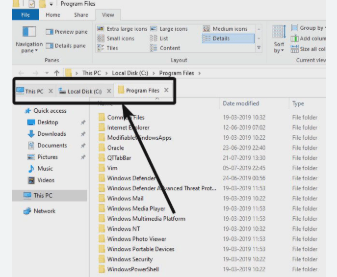
QTTabBar is a powerful Windows Explorer extension that adds tabbed browsing, enhanced navigation tools, and customizable features to the default file manager. By integrating directly into File Explorer, it enables users to manage multiple folders within a single window, similar to browser tabs.
In this comprehensive guide, we’ll explore what QTTabBar is, how it works, its key features, installation steps, benefits, and tips for maximizing productivity.
What Is QTTabBar?
QTTabBar is a free software extension designed to enhance Windows File Explorer by adding tabs and advanced file navigation tools.
Instead of opening multiple Explorer windows for different folders, QTTabBar allows users to open folders in tabs within the same window—similar to Chrome or Firefox browser tabs.
The tool integrates directly into Windows Explorer and modifies its functionality to provide features such as:
- Tabbed folder browsing
- Quick file previews
- Custom toolbars
- Folder navigation shortcuts
- Enhanced search and navigation tools
This simple yet powerful addition can significantly improve workflow efficiency for users who frequently manage files and directories.
Why Use QTTabBar?
Windows File Explorer works well for basic file management, but it lacks some productivity features found in modern software.
QTTabBar solves several common issues:
1. Eliminates Multiple Explorer Windows
Without tabs, users often open several windows to manage files across folders. QTTabBar organizes everything into a single interface.
2. Faster Navigation
Quick access buttons and keyboard shortcuts make folder switching faster.
3. Improved File Management
Features like preview panels and drag-and-drop operations streamline daily file handling tasks.
4. Customizable Interface
Users can configure toolbars, commands, and appearance settings to match their workflow.
Key Features of QTTabBar
QTTabBar includes a wide range of features that improve how users interact with Windows Explorer.
1. Tabbed Browsing for File Explorer
The core feature of QTTabBar is tabbed folder browsing.
Instead of opening multiple windows, you can open folders in separate tabs within a single Explorer window.
Benefits include:
- Easier switching between directories
- Cleaner workspace
- Faster file transfers between folders
You can also use shortcuts like Ctrl + Tab to quickly switch between tabs.
2. Folder Preview Tooltips
QTTabBar adds preview capabilities when hovering over files.
For example:
- Image previews
- Text file previews
- Video thumbnails
These previews allow users to quickly identify files without opening them.
3. Customizable Command Bars
QTTabBar includes command bars that provide quick access to common functions.
Examples of command bar actions:
- Open new tab
- Close tabs
- Navigate folder history
- Launch applications
- Access system folders
Users can customize the toolbar icons, rearrange commands, and remove unnecessary options.
4. Dual File Views
Another useful feature is Extra View, which lets users display two folder views in one window.
This works like a split-screen file manager.
Advantages include:
- Easy file comparison
- Faster drag-and-drop transfers
- Improved folder organization
5. Plugin Support
QTTabBar supports plugins that extend functionality.
Common plugins include:
- File operation tools
- Directory tree navigation
- Status bars
- Application launcher tools
Plugins allow users to tailor the tool to their specific workflow needs.
6. Keyboard Shortcuts
Advanced users can benefit from numerous keyboard shortcuts that speed up navigation.
Examples:
- Ctrl + Tab – switch tabs
- Middle-click – open folder in new tab
- Right-click options – duplicate or lock tabs
These shortcuts significantly reduce the number of clicks required to perform tasks.
How to Install QTTabBar
Installing QTTabBar is straightforward. Follow these steps:
Step 1: Download the Software
Download QTTabBar from a trusted source such as GitHub or SourceForge.
Step 2: Install the Program
Run the installer and follow the installation instructions.
Step 3: Restart Windows Explorer
After installation, Windows Explorer may restart to enable the extension.
Step 4: Enable QTTabBar
Open File Explorer and enable the toolbar from the View menu.
Once enabled, the tab bar and additional tools will appear at the top of Explorer.
How QTTabBar Improves Productivity
For professionals, developers, designers, and system administrators, file management efficiency matters.
QTTabBar improves productivity in several ways.
Faster File Transfers
Dragging files between tabs eliminates the need for multiple windows.
Organized Workspace
Tabs keep folders organized in one place.
Reduced Navigation Time
Quick access buttons and folder history reduce repetitive navigation.
Improved File Preview
Users can identify files quickly without opening them.
Overall, these improvements can save significant time during daily computer tasks.
QTTabBar Compatibility
QTTabBar works with most modern Windows operating systems.
Supported versions include:
- Windows 7
- Windows 8
- Windows 10
- Windows 11
The software is lightweight and integrates directly into Windows Explorer without requiring heavy system resources.
QTTabBar Tips for Beginners
If you’re new to QTTabBar, these tips can help you get started quickly.
Customize the Toolbar
Remove icons you don’t need and add shortcuts for frequently used folders.
Use Tab Groups
Organize tabs into groups for different projects or tasks.
Enable Folder Preview
Turn on preview options to quickly view file contents.
Learn Shortcuts
Keyboard shortcuts significantly speed up navigation.
Experiment with Plugins
Plugins can extend functionality and improve workflow.
Advantages and Disadvantages
Advantages
- Adds browser-style tabs to Windows Explorer
- Improves file management productivity
- Highly customizable interface
- Supports plugins and shortcuts
- Lightweight and free
Disadvantages
- Learning curve for beginners
- Some interface elements feel outdated
- Advanced features may overwhelm new users
Is QTTabBar Safe?
QTTabBar is considered safe when downloaded from trusted sources such as GitHub or official mirrors. It is an open-source project maintained by developers and contributors.
As with any software, users should avoid unofficial downloads to prevent malware risks.
Conclusion
QTTabBar is one of the most useful tools for enhancing the Windows File Explorer experience. By adding tabbed browsing, customizable toolbars, and advanced navigation features, it transforms the default file manager into a far more efficient productivity tool.
Whether you’re a developer handling large project folders, a designer managing media files, or a regular Windows user looking for better organization, QTTabBar can significantly improve your workflow.
With its powerful features and flexible customization options, QTTabBar remains a valuable solution for anyone seeking better file management on Windows.